






Access the UDOM SR2 login portal easily. Login to your University of Dodoma SR2 account to view results, manage academic records, and stay updated with your student information online.
UDOM SR2 is the online Student Record Management System of University of Dodoma (UDOM). It’s a digital portal where students and staff can manage academic and administrative records — e.g. course registration, exam/timetable results, fee payments, and personal info updates.

Information that can Accessible at UDOM Sr 2
| Category | Details / Accessible Information | Navigation / Steps in UDOM SR2 |
|---|
| Personal Information | Full name, student ID, date of birth, gender, nationality, contact details | Log in → Click “Profile” → View/update personal info (some fields editable) |
| Academic Records | Registered courses, grades, GPA/CGPA, downloadable transcripts | Log in → Academics → Results / Transcript → Select semester → View/Download PDF |
| Class Timetable | Daily/weekly schedule, lecture venues, lecturers’ names | Log in → Timetable → Select semester → View classes by day/week |
| Examination Information | Exam timetable, seating arrangements, results, grades | Log in → Examinations → Check exam schedule → View results when released |
| Fee Status / Payments | Tuition fees, outstanding balances, payment history, receipts | Log in → Finance / Fees → Check payment status → Download receipts → Pay online if enabled |
| Course Registration | Current semester courses, add/drop courses, registration history | Log in → Registration → Register or drop courses → Confirm registration status |
| Graduation / Completion Status | Degree requirements, credits completed, expected graduation date | Log in → Academic Progress / Graduation → Check credit hours completed & graduation eligibility |
| Library Records | Borrowed books, due dates, fines, reservations | Log in → Library → View current loans, due dates, reserve books, pay fines |
| Accommodation / Hostels | Hostel allocation, room details, fees, complaints submission | Log in → Hostel / Accommodation → View allocated room → Pay hostel fees → Submit complaints/requests |
| Announcements & Notifications | University circulars, academic notices, exam alerts, event updates | Log in → Notifications / Announcements → View latest updates relevant to students |
In this article, you will find out how to do an online application at UDOM and how to access the UDOM SR 2 website,
Steps to finish your UDOM online application
Step 1. Visit UDOM official website for online application i,e. UDOM OAS
Step 2. Register at UDOM OAS so that you can access online application services. The things you’ll be asked to fill in the registration process include your first and last name
- Example: Your full name is MKATABA AMOS KITUNDU
- The first name will be MKATABA
- Last name KITUNDU
- Your form four index number i,e. S000/XXXX/Year. Form four index number is used as username when login.
- Your email address: Make sure to use an official email which shows your real name, eg, mkatabaamos@gmail.con or mkatabakitundu@gmail.com. This will help you in future during a job post application. If Gmail doesn’t suggest either of the two options, then you can add either number or birth year to your email. Eg. mkatabaamos97@gmail.com
- Password: Make sure you choose a strong password and that you’ll remember it every time you need to log in
- Select application type: You can only apply at UDOM if you’re searching for Diploma, Bachelor’s, Postgraduate Diploma, Master’s degree or PHD program. After selecting the program, click register, and you’ll be redirected to your profile. If not, then log in using your Form Four index number and password.
Step 3: Fill in your personal details. You can’t get to step three without completing step 2. Personal information includes names, gender, nationality, disability, and phone number should be filled.
Step 4: Make payment. You’ll be required to pay 10,000 TZS as an application fee. Payments are made through the control number 994460705542, and you can pay via M-Pesa, Mixx by Yas, Airtel Money, NMB Bank and CRDB Bank. After you’ve successfully made a payment, you can now access application services, but you have to complete the following steps
Step 6: Fill the academic results for form four and six by entering your form four and form six index numbers.
Step 7: Educational qualification. You’ll be guided to fill the education qualification.
Step 8: Attachment panel
Step 9: Apply program, Select up to three programs, always put your first choice on top.
Step 10: Review and Submission
Make sure you review your application before submission. After making sure that you’ve filled the form correctly, click the submit button and then you’re done applying for the University of Dodoma
How to access udom sr2
Learn how to access UDOM SR2 easily. Follow step-by-step instructions to log in to your University of Dodoma student portal, check results, register courses, view timetables, and manage your academic records online.
- Use the official portal URL:
https://sr2.udom.ac.tz.
- Login credentials generally include your admission/registration number (or assigned username) and a password.
- First-time users may be required to reset the default password and upload required documents (for new students).
Importance:
UDOM SR2 centralizes academic and administrative tasks — course registration, fee tracking, exam results, timetable checking — making the administration more efficient and giving students/staff 24/7 digital access to essential services
How to log in to UDOM SR2
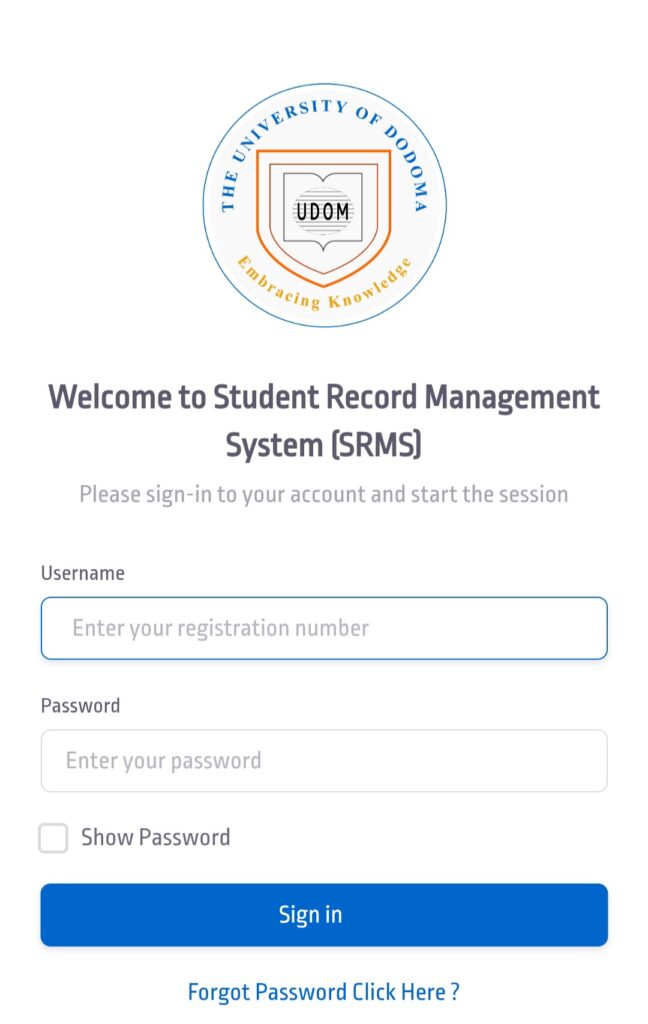
- Open a web browser (on phone, laptop or desktop) and go to https://sr2.udom.ac.tz.
- On the login page:
- Enter your Username — usually your admission or registration number.
- Enter your Password — for first-time login this may be a default password (often your surname in uppercase, if newly admitted).
- Click Login (or “Ingia”).
- On first login you may be prompted to change your password — recommended for security.
What you can do once logged in to udom sr2 (Main features)
Once inside your SR2 dashboard, you’ll be able to:
- Register for courses/modules each semester.
- View or download your exam results and academic transcripts.
- View class & exam timetables/schedules.
- Check status of tuition or other fee payments (and see payment records or control numbers).
- Update or verify personal information (contact info, personal details, uploaded documents, etc.).
- Access other academic resources or administrative services, like requesting academic letters or documents.